 Print this page
 |
| How to set the HDMI setup options (Anynet+) |
| Read about the latest news, alerts or tips about SAMSUNG products. |
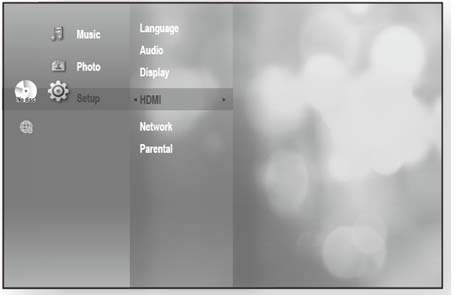
[Solution]To set up the HDMI setup options, please follow the steps below. 1. With the unit in Stop mode, press the MENU button. 2. Press the ▲▼ buttons to select Setup, then press the ENTER or ► button. 3. Press the ▲▼ buttons to select HDMI Setup, then press the ENTER or ► button. 4. Press the ▲▼ buttons to select the desired display option, then press the ENTER or ► button.
When HDMI is set to on, you can operate the Anynet+ function. Anynet+ (HDMI-CEC) (Samsung products only) If
Anynet+(HDMI_CEC) is On, Anynet+ functions will work.
However, if Anynet+(HDMI_CEC) is Off, Anynet+ function will not work.
Please refer
1. What is Anynet+? Anynet+ is a convenient function that offers linked operations with other Samsung products with the Anynet+ feature. You can operate this unit using a Samsung TV remote control or power on your Samsung TV and Home theater and start disc playback simply by pressing the PLAY button on the TV’s remote. (Important: This function is not available if the HDMI cable does not support CEC.) 2. To use Anynet+ 1) Connect the Blu-ray Disc Player to a Samsung TV with an HDMI cable. (User manual pages 21~23) 2) Set the Anynet+ (HDMI-CEC) to “On” on your Blu-ray Disc Player. 3) Set the Anynet+ function on your TV. (See the TV instruction manual for more information.) 3. Anynet+ Functions • One touch play You can power on your Samsung TV and Home Theater, and play the disc in this unit simply by pressing the PLAY button on the TV’s remote. • One touch watching Select “Watching Blu-ray Disc Player” or “Connected to Blu-ray Disc Player" (depending on your TV's menu) in the Anynet+ menu on the TV. The Blu-ray Disc Player will automatically turn on and the TV will be switched to HDMI mode. • Remote control Link You can operate this player with your Samsung TV remote control. • Available buttons on the Samsung TV remote : These buttons work the same as this Blu-ray Disc player's remote control. .
Playback control buttons : .
Menu operation button : .
Numeric buttons : .
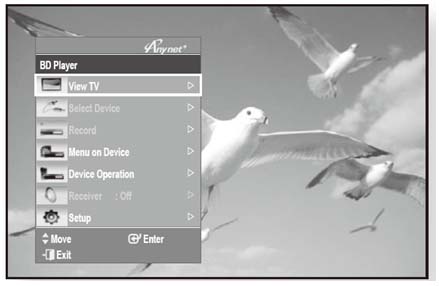
Color buttons : 4. TV anynet+ Menu When you press the Anynet+ button on your Samsung TV's remote control, the following On-Screen Display (OSD) will be shown.
• Blu-ray Disc Player Menu • When playing a movie : brings up the disc’s menu (same as DiSC MENU button on the Blu-ray Disc Player’s remote control) • In Stop mode : brings up the SETUP menu (same as the MENU button on the Blu-ray Disc Player’s remote control.) • Blu-ray Disc Player Operation Menu • When playing a DVD VIDEO, DVD-RW/-R, BD-ROM, BD-RE : shows INFO OSD (same as INFO button on the player's remote control) Important: These menus may look different depending on your Samsung TV.
|



 |
Copyright © 1995-2015 SAMSUNG All rights reserved |